Overview
The refund configuration can be done on Walmart Seller Central. When a standard customer return is initiated, Walmart will automatically refund the customer, or you will need to refund the order in Seller Central after the item is delivered to your return center. As a reminder, returns that have been received at your return center must be refunded within 48 hours of receiving the item.
The only exceptions to the standard return process include hazmat or freight items and other items that fall outside the standard return rules. For a complete list of item exceptions, review the Marketplace Returns Policy. These adjustments will require customers to contact you for processing and will be completed as described in Issue Adjustments or Non-standard Refunds.
The Marketplace Returns Policy sets consistent standards for customer returns. But sometimes, there are products or issues that fall outside our policy. When you need to issue a partial adjustment or a full refund in these situations, use the Adjustments dashboard in Seller Central.
If you fail to initiate the refund within 48 hours, Walmart will issue the refund on your behalf.
Issue a Standard Refund in Seller Central
1. Navigate to the Order Management > Returns & Refunds dashboard in Seller Central.
2. Select View Returns inside the Received box to filter the most recent customer returns.
- If an order has more than one quantity of the same item, the items will be consolidated within the same row.
3. Click the arrow icon to expand the details and display your refund options.
- The Return Details section will provide information about the item, its shipping method, and the return method the customer used.
4. Select Refund this return.
- If an order has more than one quantity of the same item, you can choose how many items you would like to refund or refund them all at once.
Issue Adjustments in Seller Central
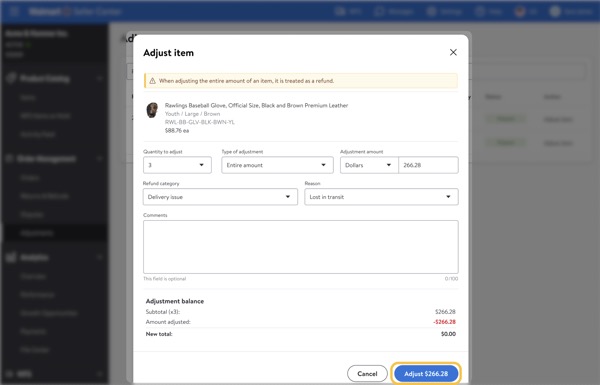
1. Navigate to the Adjustments dashboard in Seller Central.
2. Search for the order by the Purchase Order Number (PO #) or Order Number.
3. Select Adjust Item under the Action column to issue the adjustment at the item level.
- If the order has multiple items, you will need to adjust each item separately.
4. Select the Quantity to adjust.
- If there are multiple quantities of the item, you can choose how many items you would like to adjust, or you can adjust them all at once.
5. Select the Type of adjustment.
- You can refund the entire amount or a custom amount. If you’re offering a partial refund, choose the custom option and provide the percentage or the dollar amount you want to refund from the total amount the customer paid, including tax and shipping. Once you enter the refund amount, the system automatically adjusts the tax and shipping totals for you.
6. Select the Refund category and Reason.
- The category you pick determines the return options you can choose from. Include additional comments if necessary. When you're ready to submit, select Adjust.
Customers are not charged until the entire Purchase Order has shipped or been completed. If a customer has ordered multiple line items and more than one item has shipped, the rest of the items will need to be shipped or canceled for you to see the charge.
Source: Knowledge Base from walmart.com
Issue Adjustments or Non-standard Refunds
Issue a Standard Refund in Seller Center
DOC3897.2
Comments
0 comments
Please sign in to leave a comment.